

Email sent to your Zendesk can be suspended or rejected. Suspended email is not necessarily spam. This article explains the other reasons tickets can be suspended and what to do about them.
Topics covered in this article:
What are suspended tickets?
When an end-user submits a support request by email, in most cases the email becomes a new ticket or adds a comment to an existing ticket. In certain cases though, the email is suspended. Suspending an email means putting it aside for further review. It's not necessarily spam. It's just not a ticket in your Zendesk yet. It remains in limbo until somebody reviews it and decides whether to accept or reject it. If nobody reviews it, the email is deleted after 14 days.
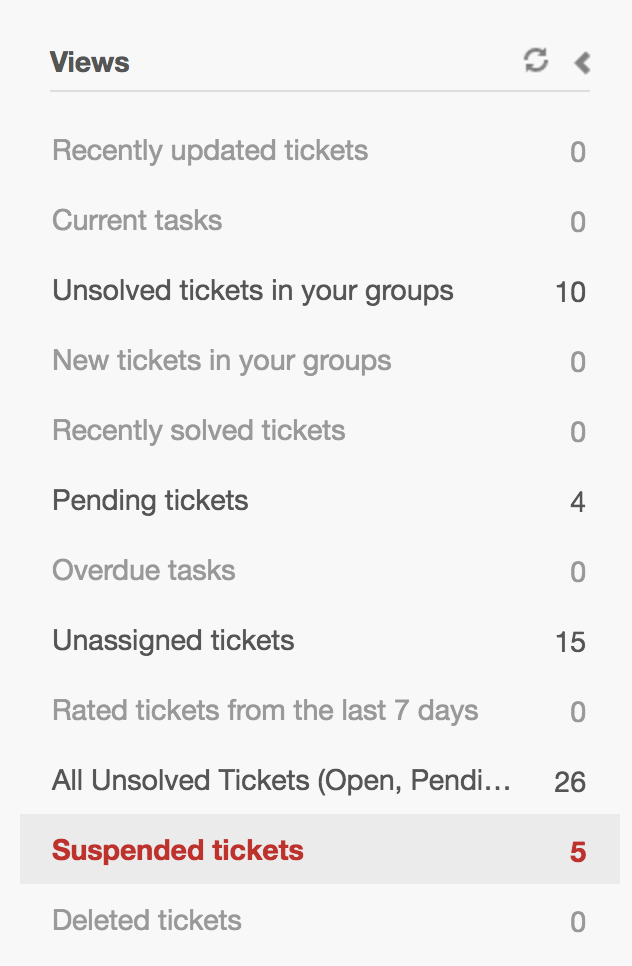
Suspended emails are displayed in a system-generated view. Click the Views ( ) icon in the sidebar and then click the Suspended
Tickets view. (In Zendesk Classic, the view won't be listed if you don't have any
suspended tickets.)
) icon in the sidebar and then click the Suspended
Tickets view. (In Zendesk Classic, the view won't be listed if you don't have any
suspended tickets.)
An email can be suspended for several reasons, some for intentional policy reasons. A common reason is that the email is from an unregistered user when you require users to register. Example:

For more information, see What causes tickets to be suspended? below.
We recommend implementing a process for reviewing suspended emails. See Guidelines for reviewing suspended tickets below.
- The email is spam. If the email is rated as having a 99% or better chance of being spam, it's rejected. If the rating is less than a 99%, the email is suspended to give you a chance to confirm that it's really spam.
- You blacklisted the email address or domain. See Using the whitelist and blacklist to control access to your Zendesk.
What causes emails to be suspended?
Emails are suspended for two basic reasons:
- the sender is not allowed to create or update a ticket
- the sender is not a person
The sender is not allowed to create or update tickets
An email can be suspended if you require users to register before submitting their first ticket, or if you have a closed or restricted Zendesk that limits who can submit tickets.
- In an open Zendesk requiring users to register, anybody can submit tickets as long as they register first. After submitting a first ticket, the ticket is suspended and a welcome email is sent to the new user requiring them to register before the ticket can be submitted. After the user verifies their email address and creates a password, the ticket is unsuspended.
- In a closed Zendesk, only designated users can create or update tickets. An administrator designates who can submit tickets. If an unknown person tries to submit a ticket, the email is suspended.
- In a restricted Zendesk, only users with email addresses in certain domains can register and submit tickets. Emails in other domains are either suspended or completely rejected, depending on your setup.
A sender can also be prevented from updating a ticket if the email token identifying the ticket is stripped from the reply email. For more information, see Understanding the email token in the agent's guide.
The sender is not a person
Emails are suspended if your Zendesk detects they're not from real users. Examples:
- suspected spam
- automated response emails
- emails from system users such as mail-daemon@ or postmaster@
- emails with a 'no-reply' address
See Cause of suspension descriptions below for more information.
Guidelines for reviewing suspended tickets
Review your queue of suspended tickets on a regular basis. Follow review guidelines like the ones suggested below. The guidelines vary depending on how your Zendesk is set up.
You can review suspended emails one-by-one or in bulk. The choice depends on your policy and the volume of suspended emails to be recovered or deleted. When reviewing emails in bulk, recovering them creates a batch of tickets. When reviewing emails one by one, you have the option of recovering each email automatically or manually. The automatic recovery option creates the ticket immediately. The manual recovery option lets you edit the ticket properties before it's created. For step-by-step instructions, see Viewing, recovering, and deleting suspended tickets in the agent's guide.
Review guidelines for an open Zendesk
In your Zendesk, anybody can submit tickets. You may or may not require them to register first. If they have to register, the first ticket is suspended while a welcome email is sent to the new user requiring them to register before the ticket can be submitted.
Guidelines if you don't require users to register
- Recover emails that should be tickets. In particular, look for the following cases:
- ticket notification replies with the email token stripped out (cause of suspension in the Suspended Tickets view: "User does not have authority to update the ticket")
- spam emails that aren't spam (cause of suspension: "Detected as spam")
- Bulk delete any remaining emails.
Guidelines if you require users to register
- Recover tickets from users who haven't registered yet. Recovering the ticket also registers the user. To identify the emails, look for the following cause of suspension in the Suspended Tickets view: "User must sign up to submit email, user notified." Note that the user's email remains unverified until the user responds to the welcome email sent to them.
- Recover other emails that should be tickets. In particular, look for the following
cases:
- tickets that registered users submitted through the web form while logged out (cause of suspension: "Submitted by registered user while logged out")
- ticket notification replies by registered users from unverified addresses (cause of suspension: "Submitted by unverified user")
- ticket notification replies by registered users with the email token stripped out (cause of suspension: "User doesn't have authority to update the ticket")
- spam emails that aren't spam (cause of suspension: "Detected as spam")
- Bulk delete any remaining emails.
Review guidelines for a closed or restricted Zendesk
In your Zendesk, only designated persons can submit tickets directly. You may have a suspended ticket workflow in place to let anonymous users submit tickets indirectly. When a support request from an anonymous user is received and suspended, an agent reviews the email and either recovers or deletes it.
Guidelines
- If you accept tickets from anonymous users, review and recover them one by one, either manually or automatically. To identify them, look for the following causes of suspension in the Suspended Tickets view: "Permission denied for unknown email submitter" for a closed Zendesk or "Sender domain not in the whitelist" for a restricted Zendesk.
- If you have a restricted Zendesk and require approved users to register, recover tickets from approved users who haven't registered yet. Recovering the ticket also registers the user. To identify the emails, look for the following cause of suspension: "User must sign up to submit email, user notified." Note that the user's email remains unverified until the user responds to the welcome email sent to them.
- Recover other emails that should be tickets. In particular, look for the following
cases:
- tickets that registered users submitted through the web form while logged out (cause of suspension: "Submitted by registered user while logged out")
- ticket notification replies by registered users from unverified addresses (cause of suspension: "Submitted by unverified user")
- ticket notification replies by registered users with the email token stripped out (cause of suspension: "User does not have authority to update the ticket")
- spam emails that aren't spam (cause of suspension: "Detected as spam")
- Bulk delete the remaining emails.
Reducing suspended spam
Zendesk uses spam detection software to rate incoming email. If the email is rated as having a 99% or greater chance of being spam, it's rejected and you never see it. If it's rated as having less than a 99% chance of being spam, the email is added to your suspended tickets to give you a chance to confirm that it's really spam.
If you find that you're receiving more spam emails than you'd like in your suspended tickets queue, you can use the blacklist to reject specific email addresses and domains. See Using the whitelist and blacklist to control access to your Zendesk.
Using the whitelist to prevent suspensions
Using the whitelist only prevents one cause of suspension ("Sender domain not on whitelist") but not the others. The whitelist is used in conjunction with the blacklist to restrict access to your Zendesk. Emails submitted by end-users on the blacklist are suspended or rejected. The whitelist specifies who is exempt from the blacklist rules, not from the email suspension rules.
For example, an email from a white-listed user can still be suspended because the user hasn't registered yet (cause of suspension: "User must sign up to submit email, user notified").
For more information, see Using the whitelist and blacklist to control access to your Zendesk.
Setting up suspended ticket notifications
In addition to the Suspended Tickets view, you can set up a suspended tickets notification email that is sent to specific email addresses.
In the Suspended Ticket Notifications section of the Tickets settings page, you can select the frequency and enter the email addresses that you want the notifications to be sent to.

To set up suspended ticket notifications
- Click the Admin icon (
 ) in the sidebar, then select Tickets. Zendesk Classic: Select the Setting menu, then select Tickets.
 - In the Suspended Ticket Notifications section you can select the frequency and enter the email addresses that you want the notifications to be sent to.
- Enter the email addresses you want the notifications sent to.
- Click Save tab.
If you later want to cancel these notifications, select Never.
You'll only receive the notification email if there are tickets in the suspended tickets queue.
Cause of suspension descriptions
The Suspended Tickets view displays messages describing the cause of suspension for each suspended email. Example:
The following table lists the possible descriptions in the view and what each one means.
| Cause of suspension | Description |
|---|---|
| Automatic email processing failed | Although rare, you might see this if a system-wide email processing error occurred. |
| Automated response mail | This is used when the email header indicates that the message is an auto-generated email response. |
| Automated response mail, delivery failed | This indicates that an outgoing email notification was not delivered to its recipient. The delivery failure email response is suspended so that a ticket is not created. |
| Automated response mail, out of office | Out of office and vacation auto-generated response emails are suspended. |
| Detected as mail loop | If you receive a large number of emails from a single sender in a short period of time, those emails are suspended and the sender's address is blacklisted for one hour. This also happens to tickets that are sent from an address equal to your default Reply To address. |
| Detected as spam | The email has been flagged as spam with a probability lower than 99%. If the probability is 99%, the email is rejected. The email might also have been flagged as spam because it is from a suspended user. |
| Detected email as being from a system user | Email generated by a mail server (for example, messages sent from addresses beginning with mail-daemon@ and postmaster@) are suspended because it is assumed that they are not intended to be support requests. |
| Email for 'noreply" address | The email address is a "no reply" email address, meaning that it is not intended to receive email. |
| Email is from a blacklisted sender or domain | The email came from an address or domain that you've blacklisted. See Using the whitelist and blacklist to control access to your Zendesk. |
| End user only allowed to update their own tickets | This indicates that an email response (ticket update) was received from a user (email address) that is different from the original submitter's email address. This might happen if the submitter forwarded the email to a different email account and then attempted to reply back to your Zendesk. Multiple email addresses per user are supported but they must be added to the user's profile. |
| User does not have authority to update the ticket | This indicates that the email header doesn't contain the email token identifying the ticket. This can happen if an email client strips out email header information. See Understanding the email token. |
| Permission denied for unknown email submitter | When you require your users to register and create an account, email received from unregistered (unknown) users is suspended. |
| Received from support address | The email was sent by (not forwarded from) one of your support addresses. For information about support addresses, see Adding support addresses for users to submit support requests. |
| Sender domain not on whitelist | When your account is configured to only allow emails from a given set of domains (using the whitelist), this indicates that the sender's email address or domain is not within that set. |
| Submitted by unverified user | This indicates that the user is known in your Zendesk but has not yet verified their email address. |
| User must sign up to submit email, user notified | This is used when an account requires end-users to register and therefore verify their email address before submitting tickets. Once their email address/user account is verified, they can submit tickets. |
Comments
0 comments
Please sign in to leave a comment.